Courtesy: Esix
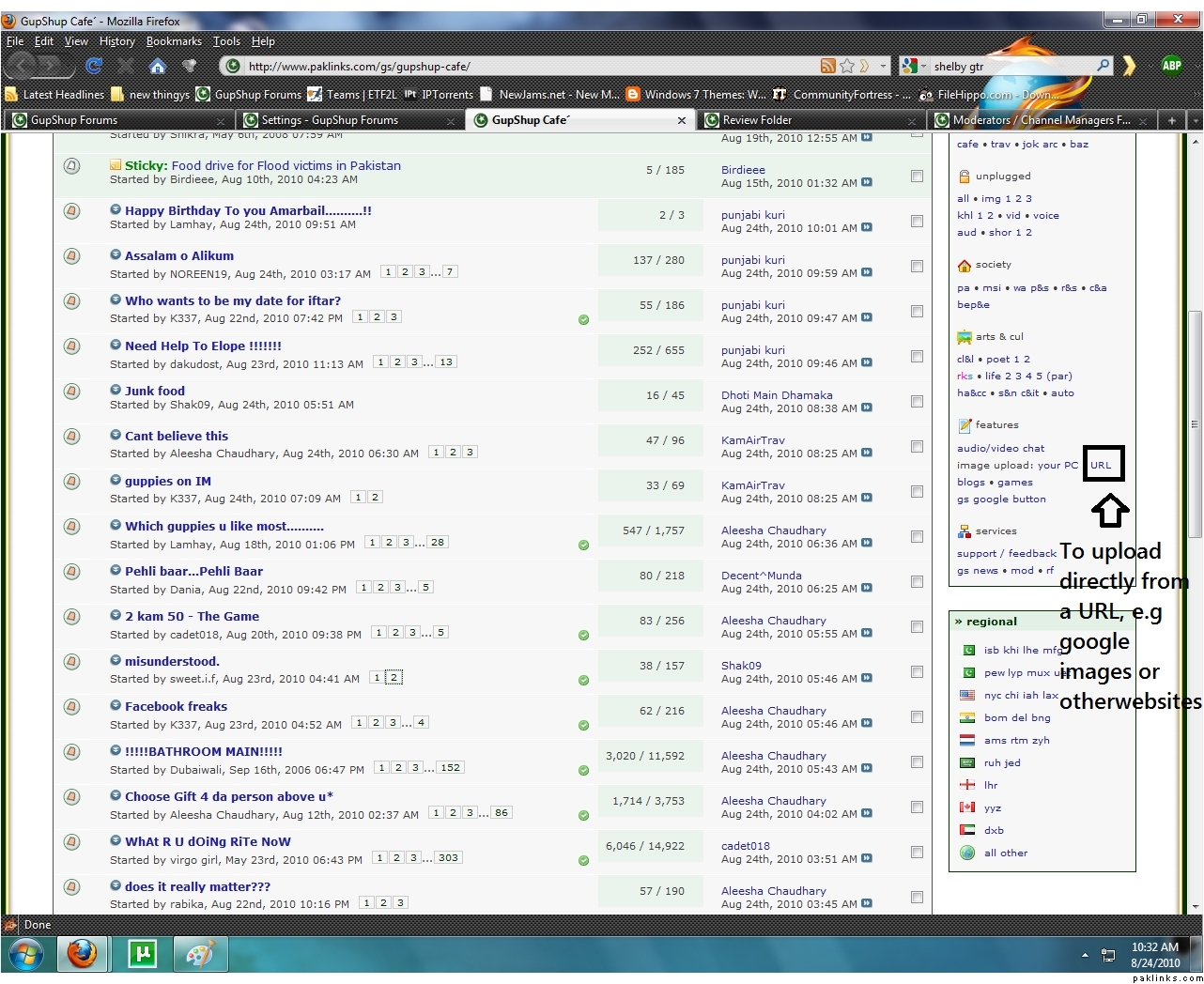
To upload from a URL click on the link in the above picture.
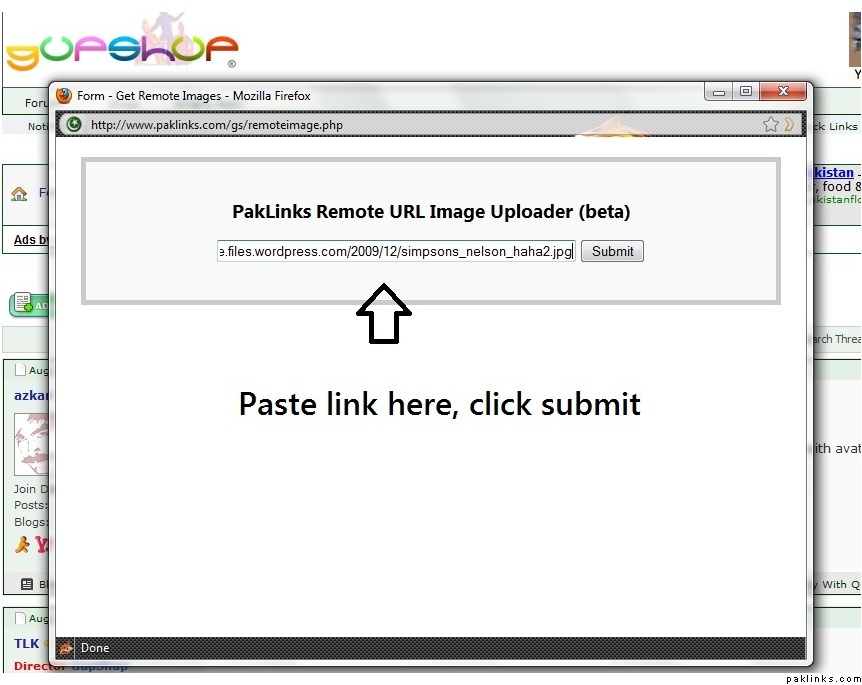
Paste the link and click “submit”
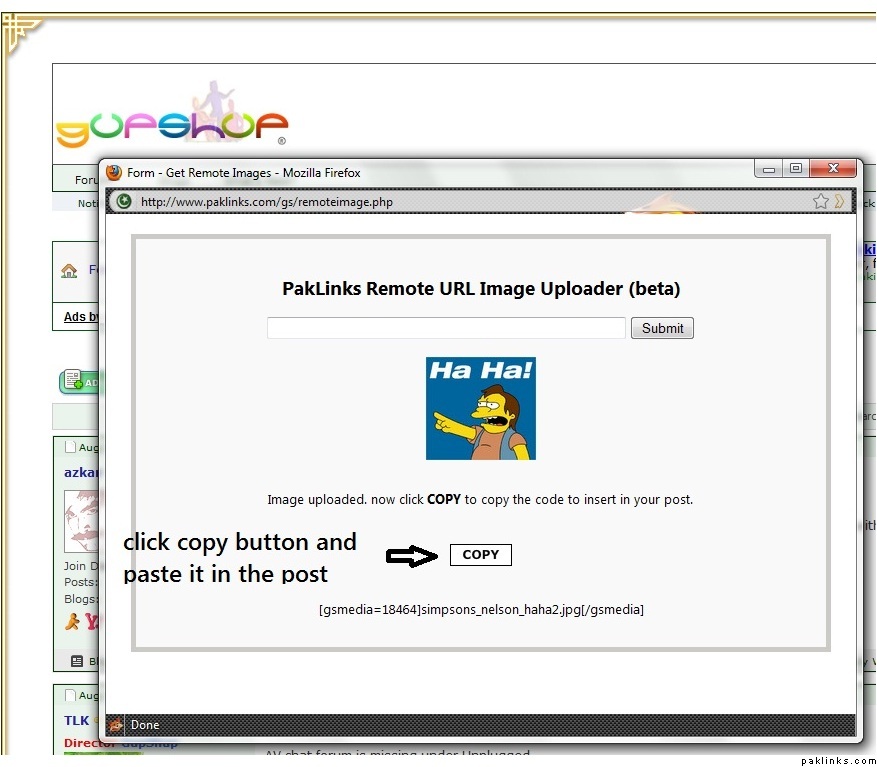
Then simply click the “copy” button and paste it in the Post you’re trying to post the picture in.
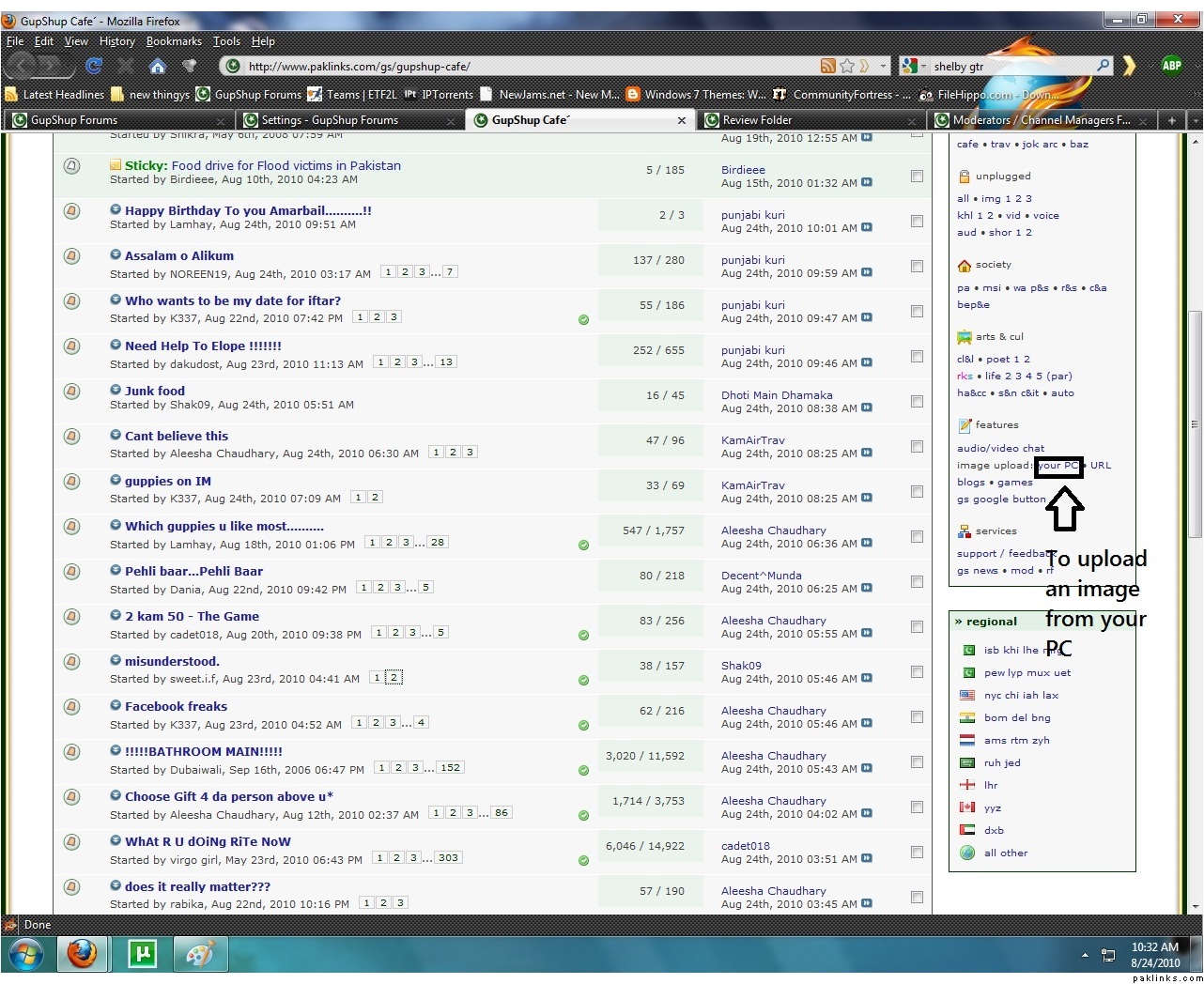
To upload a picture from your PC, click on the link in the picture above
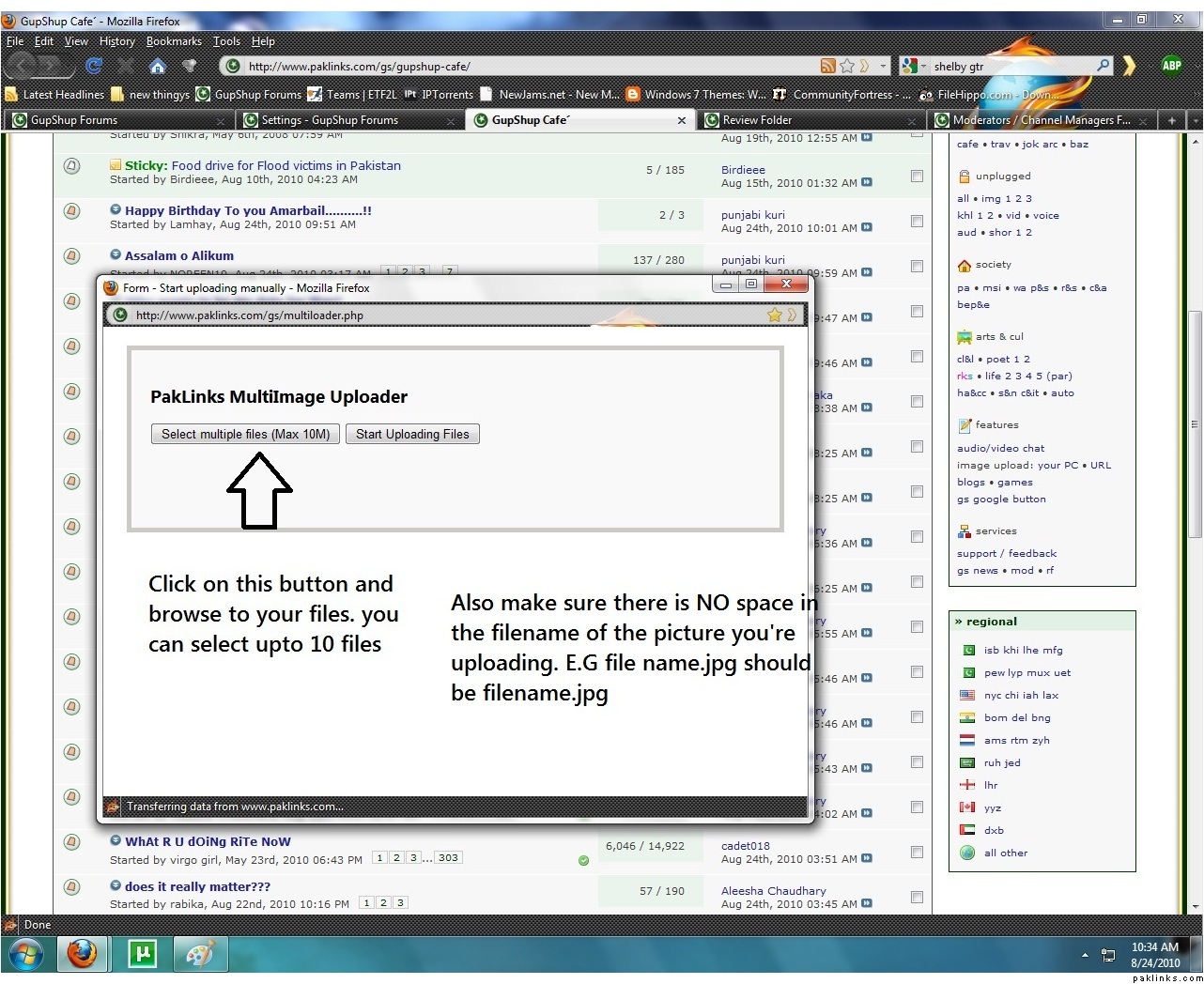
click on “select multiple files” button and browse to your images. You can select more then one image. after selecting them click on the “start uploading files” button shown in the next picture
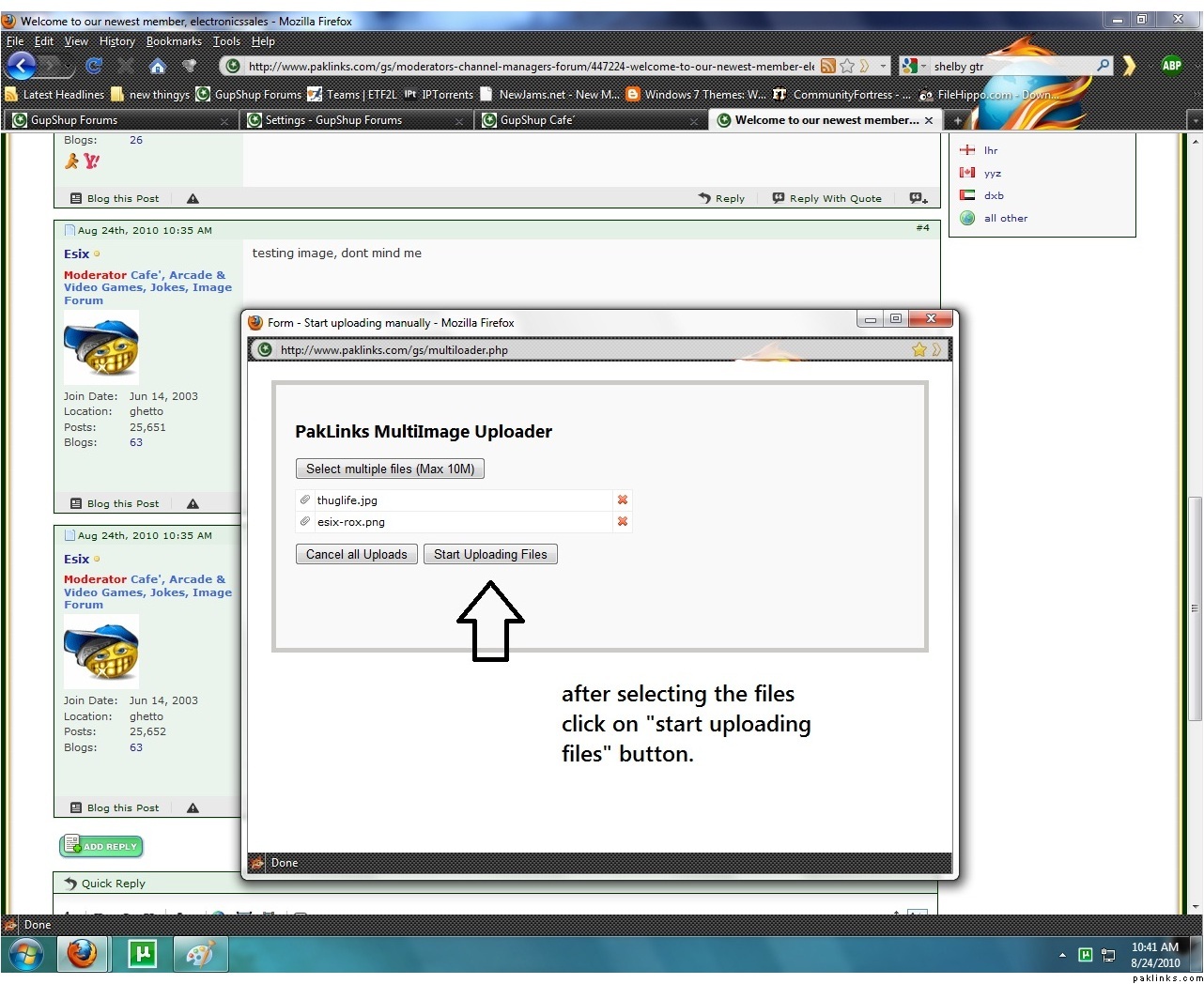
upload the files
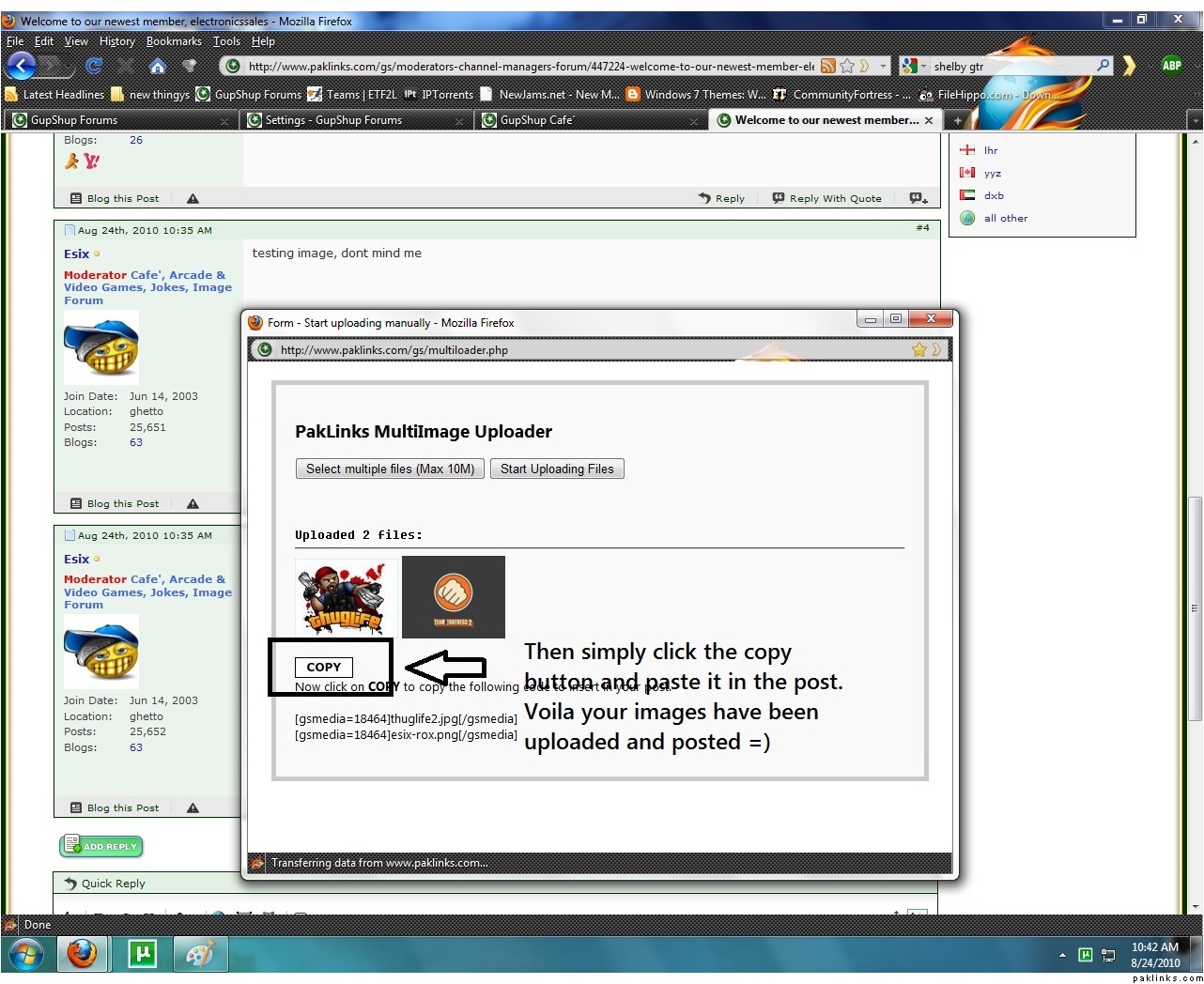
Again, after uploading simply press the “copy” button and paste the link in the post.
To paste links in the posts, you can right click in the reply box and select “paste” option or press “ctrl+v”.
Note:
-
File names should not have any space or your images will not show up. e.g “File name 1.jpg” will not work. To make it work you gotta rename the file to “Filename1.jpg”
-
**jpg .gif .png .jpeg **are the allowed file extentions for image
-
the picture we upload from URL has to end in an extention
i.e should end in .jpg or .gif or .png