OS Windows Vista Home Premium
Built in Wireless
D-Link router
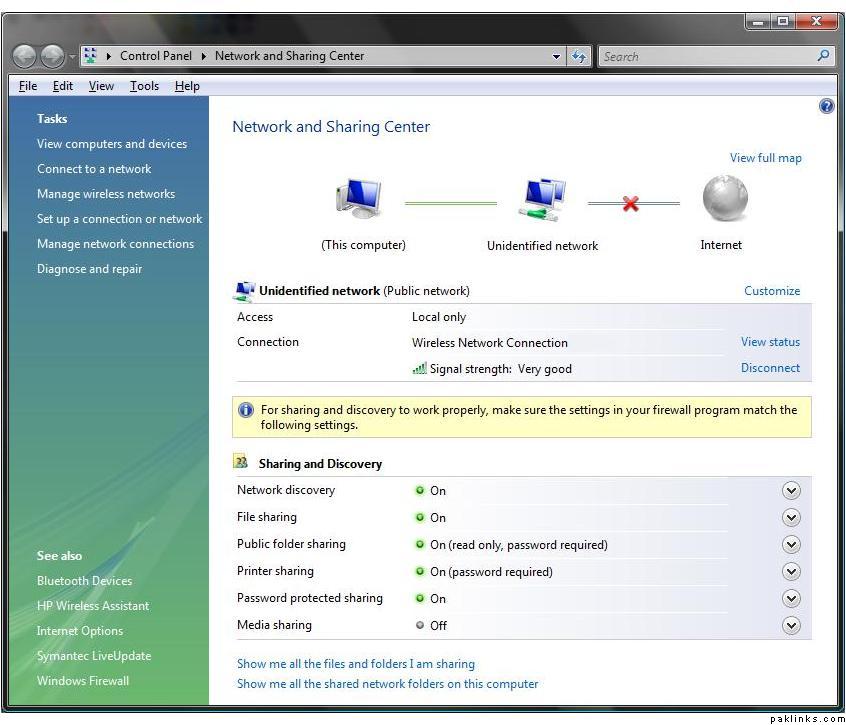
**Problem: **Everything works fine when I turn on the computer. It automatically connects to my default wireless internet. However, when the computer comes out of sleep or hibernation, it does not connect to the internet automatically. It only connects to somthing called “local Intranet”, but not to Internet.
I have tried to end “explorer” from the task manager, and then start a new process called “explorer”; it doesn’t work.
I have tried to turn off the wireless detection by pressing the button on the laptop and then turning it on, hoping it would connect; that also fails.
I have tried to disconnect from my network and manually connect again, that also doesn’t work.
I am going to paste a snapshot of what it looks like when the computer comes out of sleep, this is what it has and as you can see, it’s connected to the net, but not to the external web (internet).
so you restart the computer to get back in business?
i guess u can try connecting the laptop to router (wired) and then come out of hibernation to see if it does the same thing. In the first glance, it looked like a router to cable/dsl modem issue to me as you were getting connected to the router fine (i.e. intranet) and not having success with the internet, which is dependant on your router getting a wan ip from the cable/dsl modem.
try using this batch file -- paste the following lines in notepad and save file as .bat (in notepad, do to file--save as-- choose file type "all files" and then add a .bat extension to that filename)
I saved the file to desktop. Put the computer to sleep. Woke it up and ofcourse it had local connection. Ran the batch file. The dos prompt came up and then disappeared. Was it supposed to do that? It still didn't connect to internet and I had to restart the computer.
Also connected the computer to the router by the wire. It's interesting that it doesn't connect to internet at all, even after I restarted the computer. It connects to local only. Meanwhile, the wireless detection button was turned off.
The only way you can connect is repairing the network connection. This batch file worked for Centrio wifi 802.11b only. In 802.11g, there was no such problem.
One more thing try to use any software provided by Intel or the card manufacturer & let that handle the connections instead of Vista.
But my first suggestion would be repairning the network connection.
first of all, thanks for the ‘very clear’ responses
so, its clear that wired or wireless, the problem exists
i like najim’s idea of getting drivers from manufacturer’s site rather than using the ones provided by vista.
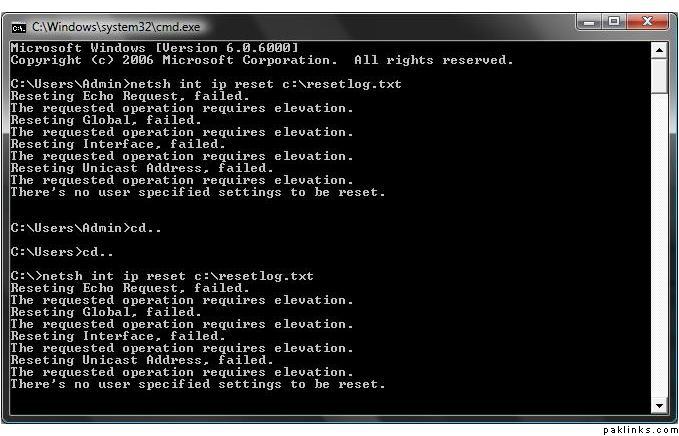
also try resetting tcp/ip stack on vista, i believe its done the same way as in xp
Basically, you just need to run this command.
Test the wireless then; also u can post the contents of c:\resetlog.txt here
One thing that still confuses me is that is if vista is connecting to local network after hibernation, then that is all we can ask from vista. The connection to internet is not Vista’s responsibility… it is rather the responsibility of the router and its connection to cable/dsl modem. I am thinking that vista might be giving a wrong message to you i.e. per your screenshot , it tells you that your ‘internet’ connection is not working. Have you tried testing internet even with that message present? Try this … when your laptop comes out of hibernation, go to command prompt and do an ‘ipconfig /all’ … if you get a 192.168.x.x ip, then ping www.google.com AND also ping 64.233.167.99. See if any one of these ping queries get you ping replies. If you do get 'em, then we can conclude that vista is giving the wrong message. You can try opening up your browser then and see if the websites load up.
p.s. yes, the batch file was suppose to bring up a dos prompt and then disappear. Also, u can run batch files from any place… if the path does matter, it would be coded in the batch file.
The only way you can connect is repairing the network connection. This batch file worked for Centrio wifi 802.11b only. In 802.11g, there was no such problem.
One more thing try to use any software provided by Intel or the card manufacturer & let that handle the connections instead of Vista.
But my first suggestion would be repairning the network connection.
I have tried repairing the network. Windows tries to repair it but says windows cannot fix it.
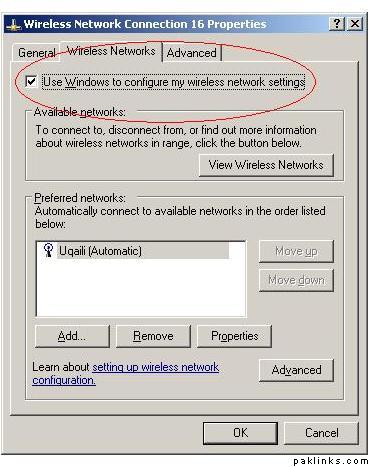
I dont know if this will help or not. I dont know much about Vista but I have a similar problem on Windows XP on my work computer (IBM ThinkPad T41). This only happens with the laptop’s built in network card, doesnt happen with a external NIC card. Everytime i boot the computer, or bring it out of hibernation, the following checkbox becomes unchecked. It shows as being connected to my router but unable to acquire an IP address. For me to make it work i have to check this box and re-connect to my wireless lan.
Do you use windows to configure your wireless connection or an external software (for example something provided by the wireless card’s manufacturer). This problem is most likely to happen if you use windows to configure your wireless LAN.
ooops, I meant I couldn't find it in Vista. I know where it is in XP but need help finding out where it is in vista. And no, if you go to the properties of a network connection, it doesn't give you that option.
Again, run the netsh as an administrator. Open the command prompt and do:
"runas /noprofile /u:domain\administrator cmd.exe"
type in the password when it asks and ur in, then u can type whatever command in that window and it will run as the admin.
PS1: works in xp too
PS2: Ofcourse replace "domain" with your own domain name or take it out if you are running the computer in a work group (including the "\")
I tried to run it as administrator using the command, but I had no idea what my password was. The password to log on to windows didn't work. Then I went to the start menu and ran it as an administrator by right-clicking on the command prompt. THEN ran the netshell and it okayed the resetting. A reboot was required, per the message in the command prompt. Then rebooted, of course the net was working. Then I put it to sleep, woke it up, and it connected! Even closed the lid to put it to sleep (just to double check) and it appeared as local connection at first but got an IP address and connected to the net automatically. So yes, success!!!